


Images
-
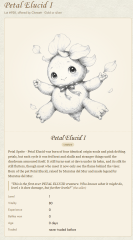
Petal Elucid I
Winner of the auction will have this exclusivity for this creature for at least 60 days
-
-
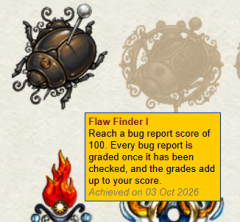
First Bug Achievement?
SPOILER!
-
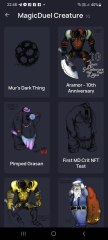
Screenshot_20230327_224813.jpg
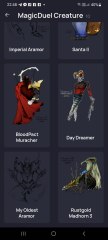
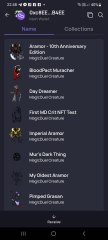
NFTs created from the new api, in md, from bestiary creatures. You can find them also on opensea.io where you can view there rarity and such.
Currently there is no way for anyone to create such nfts, but this is just because nobody showed any interest in this feature.
I will cobtinue working on in-game interfwces for this, or i will just use them for personal transfers and rewards..depends only on your feedback
-
-
-
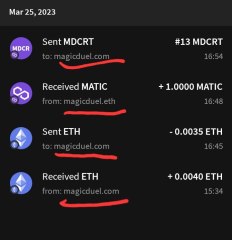
Screenshot_20230327_221129_AlphaWallet.jpg
magicduel.com is not the official erc-20 (eth, polygon) address for md on the eth blockchain.
Magucduel.eth is also a valid ens domain name bound to the official address.
This is part of a series of experiments i do in the crypto direction
-









vaelinn
-
Joined
-
Last visited
Reputation Activity
-
 vaelinn reacted to Aamon in Unlocking all features (email verification?)Glad I was able to help
-
 vaelinn got a reaction from Aamon in Unlocking all features (email verification?)Ok, I was able to change to an alternate email that I have access to and got the verification link. I am all set now. Thanks Aamon you got me pointed to where I needed to be looking.
-
vaelinn reacted to Aamon in Unlocking all features (email verification?)If you scroll to the bottom of the page to the tool bar you will see the settings icon at the bottom like so in my Screenshot
