


Images
-
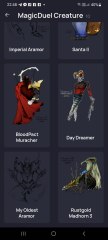
Screenshot_20230327_224813.jpg
NFTs created from the new api, in md, from bestiary creatures. You can find them also on opensea.io where you can view there rarity and such.
Currently there is no way for anyone to create such nfts, but this is just because nobody showed any interest in this feature.
I will cobtinue working on in-game interfwces for this, or i will just use them for personal transfers and rewards..depends only on your feedback
-
-
-
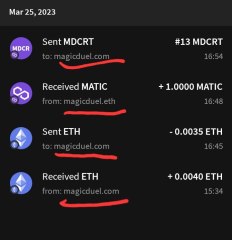
Screenshot_20230327_221129_AlphaWallet.jpg
magicduel.com is not the official erc-20 (eth, polygon) address for md on the eth blockchain.
Magucduel.eth is also a valid ens domain name bound to the official address.
This is part of a series of experiments i do in the crypto direction
-





Zilther
New Member
-
Joined
-
Last visited
-
Okay, Thanks for your time Burns.
-
Spelling errors continued. On the "Creatures under your control" Guide, the subcategory "Recharging a creature" There is a line with a few spelling mistakes. "Make sure you have enough vitality tu recharge them becuse usualy after an intensive fight you remain also without vitality, in this case you have to wait for the next regeneration interval." To, Because, and Usually were spelled incorrectly. - Zilther P.S. I'm not trying to sound like a critic, I'm just good at catching stuff like this. [quote name='Burns' date='25 July 2009 - 12:38 PM' timestamp='1248525515' post='37875'] those spelling and grammar issues are all over the game, in time, people stop caring and start reading between the lines xD [/quote] Okay, so, should I stop posting them?
-
In House of Liquid Dust area the sign reads, "For new players:To regenerate your creatures you need to have enough vitality then go on your creatures page and click the orange button under each creature to give part of your vitality to it. You can recover vitality by waiting for ti to regenerate, using the free credits page, buying powerups or later on in the game by doing regeneration fights with friendly players." In the line "You can recover vitality by waiting for ti to regenerate...." It is spelled backward. -Zilther P.S. I'm new here, so if I did anything wrong in my bug report, I am sorry and would gladly read a PM with instructions on how to do it correctly.