Images
-
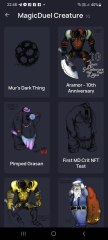
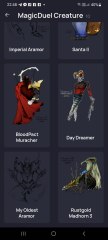
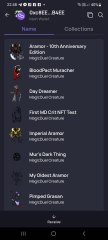
Screenshot_20230327_224813.jpg
NFTs created from the new api, in md, from bestiary creatures. You can find them also on opensea.io where you can view there rarity and such.
Currently there is no way for anyone to create such nfts, but this is just because nobody showed any interest in this feature.
I will cobtinue working on in-game interfwces for this, or i will just use them for personal transfers and rewards..depends only on your feedback
-
-
-
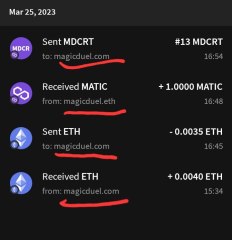
Screenshot_20230327_221129_AlphaWallet.jpg
magicduel.com is not the official erc-20 (eth, polygon) address for md on the eth blockchain.
Magucduel.eth is also a valid ens domain name bound to the official address.
This is part of a series of experiments i do in the crypto direction
-



notxasj
Member
-
Joined
-
Last visited
Everything posted by notxasj
-
From the thumbnails it is hard to tell but if you click on the pictures and see the full size images you can tell that it was drawn by the same person. Sir Kamil good job on your dedication to improving your art. Am I correct in understanding that if I want to buy one of your avatars that you post here that it's already been approved and purchased from the MD Shop or will I still have to wait for it to be placed in the MD Shop and be the first person to snag it from there
-
I don't see that there is a real need for idea #1 if you try to attack someone again it will already tell you how long before you can attack them again. I don't understand why you would need a timer counting down for each player I would see multiple timers counting down on multiple players a nuisance and from experience both in attacking and being attacked most people don't have a problem in attacking you again as soon as it is possible without the use of timers counting down on the screen
-
So it stopped working for me the screen went blank after I had been moving around for a few minutes and so I exited and then tried to enter the maze again but continue to get a blank screen. Is this one of the traps you mentioned?
-
mur is a wall