

Skip to content
View in the app

A better way to browse. Learn more.

MagicDuel Community

A full-screen app on your home screen with push notifications, badges and more.

To install this app on iOS and iPadOS
  1. Tap the Share icon in Safari
  2. Scroll the menu and tap Add to Home Screen.
  3. Tap Add in the top-right corner.
To install this app on Android
  1. Tap the 3-dot menu (⋮) in the top-right corner of the browser.
  2. Tap Add to Home screen or Install app.
  3. Confirm by tapping Install.

How do i customize public profile
Featured Replies

So you want to build your own custom profile. You came to the right place. This will likely be a bit long with the pictures but possibly helpful.

You can view an example of mine here Profile

First you will need to croll to the bottom of your chat till you see your papers Screenshot_20261015_153417_Chrome.jpg

Then click on papers and you will open a window and click on edit personal pageScreenshot_20261015_153435_Chrome.jpg

After you will get another window with lots of things Screenshot_20261015_155205_Chrome.jpg

On this page you can choose the names and such but I wouldnt worry about this page as the prompt you give will automatically fill these for you. But you can customize them later if youd like to.

Moving on.... This page is where the magic happens

Screenshot_20261015_153527_Chrome~2.jpg

On this page it is important to pic what you want your public profile to show. Everything from comments on self, to creatures, to primordials, adepts and so on. After you choose what you want shown, at the bottom you will click " KEEP DATA" before going on to the next page.Screenshot_20261015_153618_Chrome~2.jpg

After you click keep date you'll go to the Design page as show here belowScreenshot_20261015_160019_Chrome.jpg

On this page you can see in the [ What your page may show] section everything you clicked on the data page and kept. Remember if you dont click "keep data" on the previous page then it will default to certain amounts of data it will show.

Now in the [Discribe the page you want] section you have templates you can pick from if you do not want to try and make your own. But you can make your own by what you describe it to do. An example of my prompt is below

The prompt for my profile

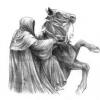
Create my profile as an ancient, evil, haunted graveyard belonging to Blackshade Rider, Voice of the Dead. Fill it with centuries-old gravestones, crumbling crypts, rusted iron fences, tangled roots, dead trees, and torn burial cloth. Cold mist crawls across the earth while occasional lightning illuminates the distant graves.

The opening screen must feature one enormous, weathered gravestone with a broken top, deep cracks, chipped edges, and faded carvings. Inscribe “Blackshade Rider” prominently, with “Voice of the Dead” beneath it. Keep both readable. A faint spectral glow seeps from the lettering. At its base, write “Wake the silence.” Visitors must click or tap this gravestone to enter the main cemetery.

Make the cemetery itself my entire profile navigation. EVERYTHING available to view must have its own separate, clickable gravestone. Include Creatures, Primordials, Achievements, Medals, Biography, Military Ways and Beliefs, Protector Statement, Comments on Self, Personal Hate List, and every other available profile category. Use the actual available profile data to determine the full set of graves so nothing is left out.

Within collections, give every individual entry its own gravestone too. Clicking Creatures should reveal a burial ground where each creature has a separate named stone. Primordials, achievements, medals, and other collections should work the same way. Never combine multiple entries into a single grave. Include only categories and entries supported by my actual data.

Give the stones varied shapes and signs of age while keeping every name easy to read and tap. Arrange them along winding cemetery paths. Let the graveyard expand as needed, with scrolling that works comfortably on phones.

Clicking a gravestone makes its inscription glow and opens its content on an aged burial slab framed by cracked stone and tattered cloth. Show the full available details and relevant images. Provide clear controls to return to the previous burial ground or the main cemetery.

Use near-black skies, ash-grey stone, bone-white lettering, tarnished silver, and restrained blue-green spirit light. Add drifting fog, flickering grave candles, gently moving cloth, and occasional lightning behind the cemetery. Keep effects subtle enough that navigation and reading remain easy.

The whole place should feel like a cemetery entrusted to the Voice of the Dead, where every grave preserves a name, a memory, a creature, or a deed—and opens only when a visitor chooses to disturb its silence.

Now that you have given it your prompt you will make sure to click "New Design "

Screenshot_20261015_160646_Chrome.jpg

After that click "Design my page" this will take a few minutes and you can exit out and check back later. Once dont enjoy your new design.

But wait something isn't right and I want to fix just one thing!!!

In a case where you only want to fix just one thing you will go back to the Design section and write in prompt what you want fixed and how.

(For example my creature section was a bit wonky so I fixed with this prompt)

Fixed creature section prompt

Make the creature gravestones much larger and more prominent. Each should look like a substantial, ancient grave marker, with a large, clearly readable creature name and a generously sized creature image. Use fewer gravestones per row, with enough space between them to appreciate each creature. On phones, display one large creature gravestone per row. Let the cemetery extend vertically to accommodate them. Preserve the weathered stone, haunted atmosphere, and click-to-open details.

After you enter the prompt Do Not Click New Design.

You will intead click change my current design as shownScreenshot_20261015_161147_Chrome~2.jpg

Then click design my page again and it should fix the design issue. After a few minutes.

I hope this helps everyone with their new designs

my profile

OLD VERSION OF MY PROMPT

Make my page look like an ancient grimoire resting in a still pool of black liquid on a dark wooden desk, in dim light. The book starts closed: a worn leather cover with my name on it. Clicking it, or turning the scroll wheel, opens it.

The book is always the same fixed size on every page and never grows or shrinks; content that doesn't fit carries onto the next page. The scroll wheel turns the pages (one page turn per push of the wheel with no cooldown) , never scrolls the page itself. Arrow keys and swipes also turn pages.

PAGE 1: my avatar, filling the page, with my motto beneath it in a hand-written script.

PAGE 2: my primordial/pet shown as a large portrait from this image with a short description.

FOLLOWING PAGES: my creatures as small bestiary entries, a few to a page, with their picture, name and level.

Parchment textures and ink splatters.

EFFECT: black ooze drips often and steadily from the top of the screen, falls onto the book, splatters across the pages and fades away; drops land in the pool around the book and ripple outward.

i then had a problem with the code being broken, my book did not open. so i gave the link to my external AI agent, to parse the page and find the problem. it told me the following:

code:

The mistake is near the top of the script, in the line that starts const t=k=>. It ends with:

...nav_pets:"pets"}[k]||"")+""]')?.textContent||"";

The ""]' should be '"]': a quote went missing, so the code breaks at that spot.

i took this back into the editor and told it the problem, and asked if it could fix it, and it was able to.

Join the conversation

You can post now and register later. If you have an account, sign in now to post with your account.

Guest
Reply to this topic...

Forum Statistics

  • Total Topics 17.7k
  • Total Posts 183.2k

Account

Navigation

Search

Search

Configure browser push notifications

Chrome (Android)
  1. Tap the lock icon next to the address bar.
  2. Tap Permissions → Notifications.
  3. Adjust your preference.
Chrome (Desktop)
  1. Click the padlock icon in the address bar.
  2. Select Site settings.
  3. Find Notifications and adjust your preference.
