Images
-
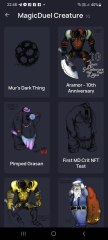
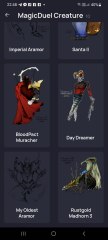
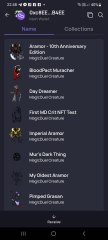
Screenshot_20230327_224813.jpg
NFTs created from the new api, in md, from bestiary creatures. You can find them also on opensea.io where you can view there rarity and such.
Currently there is no way for anyone to create such nfts, but this is just because nobody showed any interest in this feature.
I will cobtinue working on in-game interfwces for this, or i will just use them for personal transfers and rewards..depends only on your feedback
-
-
-
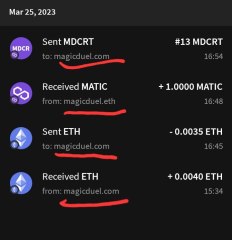
Screenshot_20230327_221129_AlphaWallet.jpg
magicduel.com is not the official erc-20 (eth, polygon) address for md on the eth blockchain.
Magucduel.eth is also a valid ens domain name bound to the official address.
This is part of a series of experiments i do in the crypto direction
-



Azull
Member
-
Joined
-
Last visited
Everything posted by Azull
-
Happy Birthday :)
-
@ dst apologies for the neg rep. Phone screens are tricky
-
Happy Birthday
-
Happy birthday
-
https://xkcd.com/251/
-
Don't panic. This is just one of those super secret social experiments. (Results to be disclosed soon... maybe)
-
Heads, no. TC, needs work.
-
Some other discussion on the same subject. http://magicduel.invisionzone.com/topic/13667-brainstorming-about-torches/?hl=torch http://magicduel.invisionzone.com/topic/14794-new-torch-contest-concept/?hl=torch http://magicduel.invisionzone.com/topic/14891-torch-competition-proposals/?hl=torch
-
Happy Birthday :)
-
You have some interesting ideas here.
-
Are we really going to have this discussion? Let me just quote something: (source, "dum dum dummm..." The Internet) I hope we can end this right here.
-
...
-
Happy Birthday
-
Thank you all :)
-
Happy Birthday :)
-
Happy Birthday :)
-
Happy birthday :)
-
Happy birthday :)
-
Happy Birthday to you both.
-
Happy Birthday :)
-
Happy Birthday :)
-
Happy Birthday to you both :)
-
Happy Birthday
-
Happy Birthday
-
My questions remain :)