Images
-
Screenshot_20230327_224813.jpg
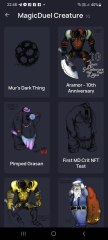
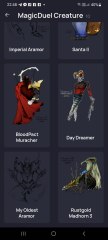
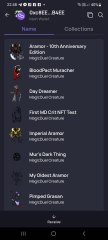
NFTs created from the new api, in md, from bestiary creatures. You can find them also on opensea.io where you can view there rarity and such.
Currently there is no way for anyone to create such nfts, but this is just because nobody showed any interest in this feature.
I will cobtinue working on in-game interfwces for this, or i will just use them for personal transfers and rewards..depends only on your feedback
-
-
-
Screenshot_20230327_221129_AlphaWallet.jpg
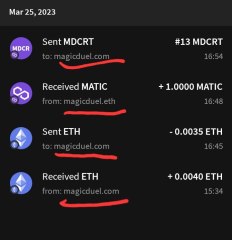
magicduel.com is not the official erc-20 (eth, polygon) address for md on the eth blockchain.
Magucduel.eth is also a valid ens domain name bound to the official address.
This is part of a series of experiments i do in the crypto direction
-



MRAlyon
Member
-
Joined
-
Last visited
Topics posted by MRAlyon
-

- 0 replies
- 552 views
-
- 3 replies
- 1243 views
-
- 5 replies
- 1522 views
-
- 7 replies
- 1434 views
-
-
- 3 replies
- 1134 views
-
- 12 replies
- 1706 views
-
- 2 replies
- 982 views
-
- 20 replies
- 3392 views
-
-
-
- 3 replies
- 1020 views
-
- 1 reply
- 769 views
-
-
- 6 replies
- 1567 views
-
- 8 replies
- 2584 views
-
- 5 replies
- 1026 views
-
- 20 replies
- 2446 views
-
- 15 replies
- 1852 views
-
- 7 replies
- 2343 views
-
- 0 replies
- 852 views
-
- 11 replies
- 2573 views
-
- 49 replies
- 6445 views
-
- 4 replies
- 1097 views
-
- 9 replies
- 2481 views




.thumb.jpg.93cfe2fe5fa7410e33895ac251c8ffd2.jpg)