Images
-
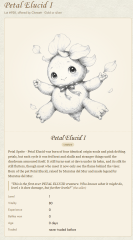
Petal Elucid I
Winner of the auction will have this exclusivity for this creature for at least 60 days
-
-
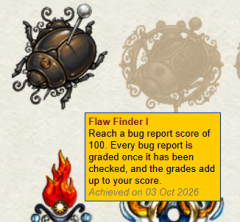
First Bug Achievement?
SPOILER!
-
Screenshot_20230327_224813.jpg
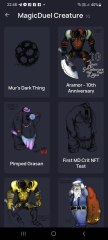
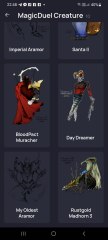
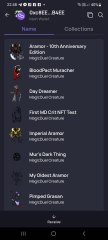
NFTs created from the new api, in md, from bestiary creatures. You can find them also on opensea.io where you can view there rarity and such.
Currently there is no way for anyone to create such nfts, but this is just because nobody showed any interest in this feature.
I will cobtinue working on in-game interfwces for this, or i will just use them for personal transfers and rewards..depends only on your feedback
-
-
-
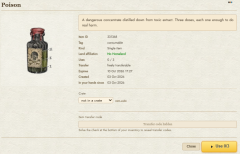
Screenshot_20230327_221129_AlphaWallet.jpg
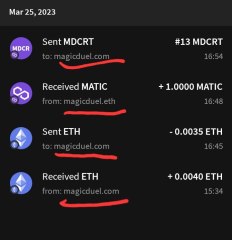
magicduel.com is not the official erc-20 (eth, polygon) address for md on the eth blockchain.
Magucduel.eth is also a valid ens domain name bound to the official address.
This is part of a series of experiments i do in the crypto direction
-







chriselnenepr
-
Joined
-
Last visited
Everything posted by chriselnenepr
-
I'm in. I also agree that dumping heads on another player of lower mindpower is unfair
-
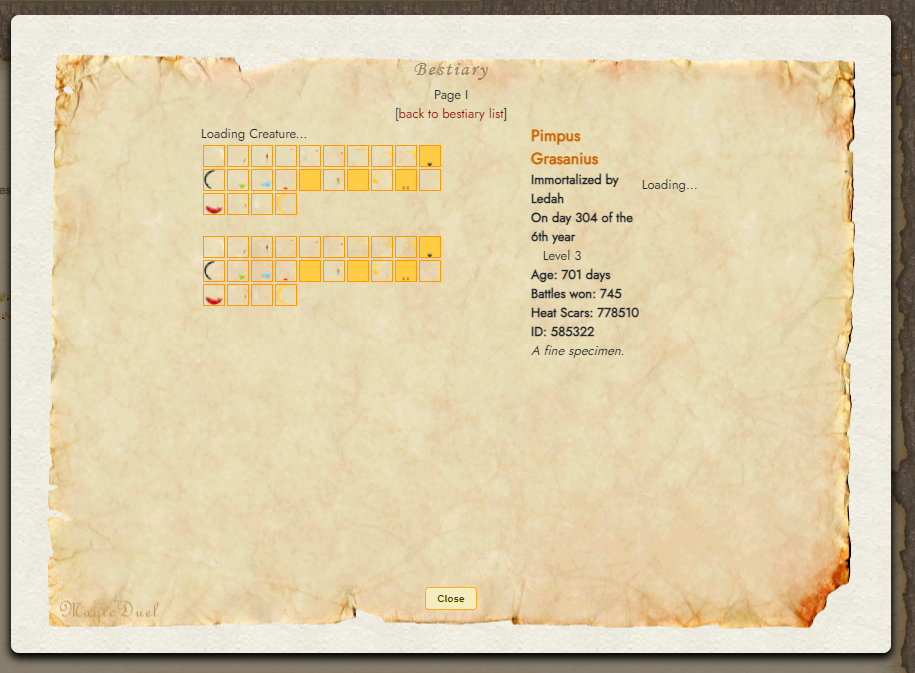
Player name: chriselnenepr Player ID: 218402 Browser: Brave Operating System: Windows 11 Importance: Low importance Description - What happens when the bug occurs: Creature never loads How to reproduce the bug: Click on bestiary link of any player that has one What you expect to happen: I expect to see the creature of the player
-
I'm good with 20 or 21 ST
-
I'm in!
-
This is what the clickie will say?
-
The Shm Shmsh has been passed to @Ledah
-
I have 25 letters out of 26. Check my inventory when you get the chance
-
chriselnenepr Team 🐢as well. Slow and steady wins the race
-
-
Thanks for the fun adventure Fyrd. The more I went about discovering the other clues the more into it I got. It was great to take a break from grinding! Glad I took the time to adventure around MD
-
Thank you @Fyrd Argentus and @Chewett. The problem was resolved on my end and I was able to advance to MP5
-
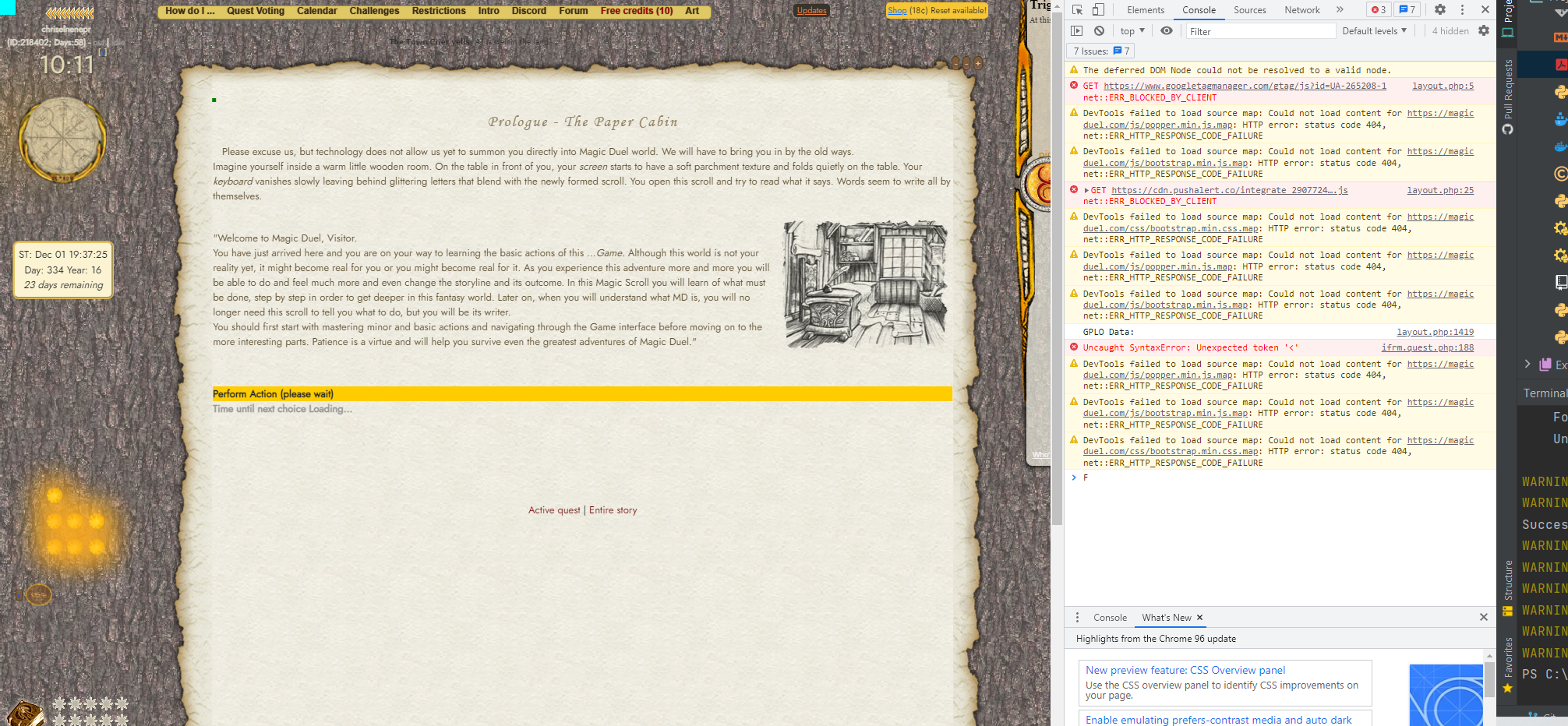
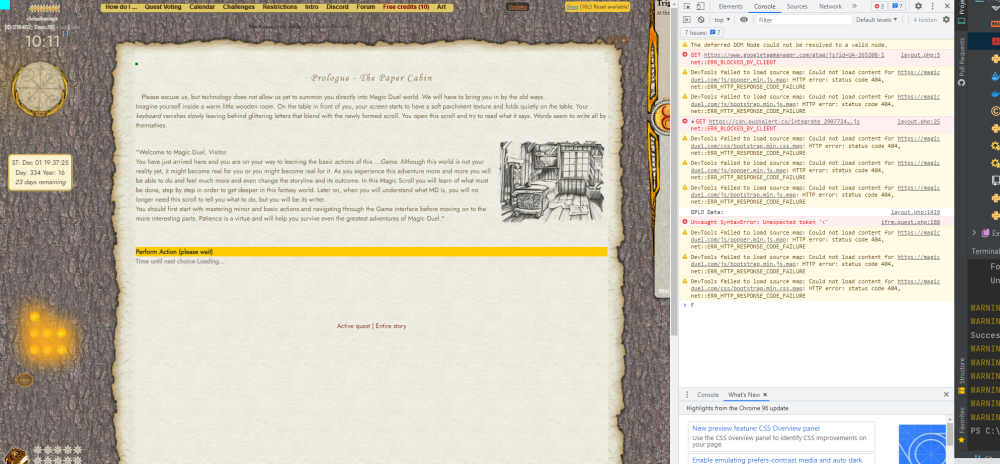
Attaching Attached image with console log
-
Mine looks just like this one as well
-
Player name: chriselnenepr Player ID: 218402 Browser: Brave Operating System: Windows 11 Importance: Medium importance Description - What happens when the bug occurs: I am presented with the following on screen string(9) "healer| |" [Creature] Trying to load invalid marks class [] (healer| | parts:Array ( [0] => [1] => ) ) How to reproduce the bug: Have a Shm Shmsh with the healer mark in your party and initiate a fight What you expect to happen: I expected to be able to fight with this creature in my party
-
As a returning player, I think it would be great If we had an alliance for players that particularly like to grow creatures or just like to battle in general