Images
-
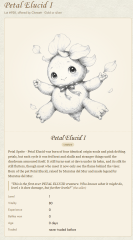
Petal Elucid I
Winner of the auction will have this exclusivity for this creature for at least 60 days
-
-
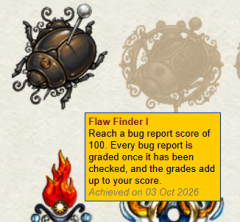
First Bug Achievement?
SPOILER!
-
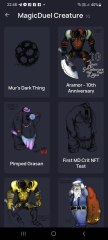
Screenshot_20230327_224813.jpg
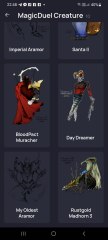
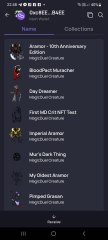
NFTs created from the new api, in md, from bestiary creatures. You can find them also on opensea.io where you can view there rarity and such.
Currently there is no way for anyone to create such nfts, but this is just because nobody showed any interest in this feature.
I will cobtinue working on in-game interfwces for this, or i will just use them for personal transfers and rewards..depends only on your feedback
-
-
-
Screenshot_20230327_221129_AlphaWallet.jpg
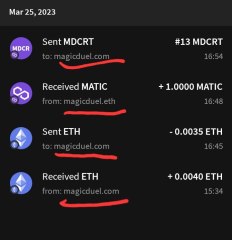
magicduel.com is not the official erc-20 (eth, polygon) address for md on the eth blockchain.
Magucduel.eth is also a valid ens domain name bound to the official address.
This is part of a series of experiments i do in the crypto direction
-






Chewett
-
Joined
-
Last visited
Everything posted by Chewett
-
This has been resolved.
-
This has been resolved.
-
This has been resolved.
-
To be clear, and not spread misinformation, this is not a bug and he should not be for this case. This is the correct answer
-
Can an A25 member investigate? I get a similar issue when I enter the first GWI scene and I'm not sure what has been done to cause that.
-
Is anyone able to confirm?
-
This has been resolved.
-
This has been resolved.
-
This has been resolved.
-
This has been resolved.
-
Me memory is vague, but it is not GG as it is a creature living in the mountains of GG?
-
This has been resolved.
-
This has been resolved.
-
You can view the full adventure log on the adventure log page: https://magicduel.com/page/AdventureLog/view/all
-
-
This has been resolved.
-
This has been resolved.
-
This has been resolved.
-
This has been resolved.
-
This has been resolved.
-
Can someone confirm/deny this?
-
This has been resolved.
-
This has been resolved.
-
This has been resolved.
-
This has been resolved.