Images
-
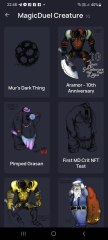
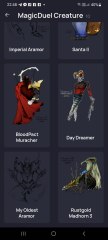
Screenshot_20230327_224813.jpg
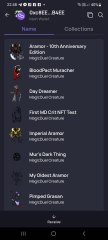
NFTs created from the new api, in md, from bestiary creatures. You can find them also on opensea.io where you can view there rarity and such.
Currently there is no way for anyone to create such nfts, but this is just because nobody showed any interest in this feature.
I will cobtinue working on in-game interfwces for this, or i will just use them for personal transfers and rewards..depends only on your feedback
-
-
-
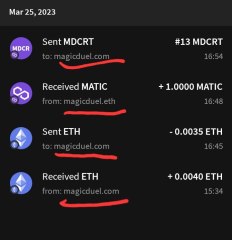
Screenshot_20230327_221129_AlphaWallet.jpg
magicduel.com is not the official erc-20 (eth, polygon) address for md on the eth blockchain.
Magucduel.eth is also a valid ens domain name bound to the official address.
This is part of a series of experiments i do in the crypto direction
-


Burns
Member
-
Joined
-
Last visited
Topics posted by Burns
-
- 33 replies
- 6539 views
-
- 4 replies
- 1361 views
-
-
- 4 replies
- 1193 views
-
- 5 replies
- 1840 views
-
- 3 replies
- 976 views
-
- 5 replies
- 1458 views
-
- 10 replies
- 1861 views
-
- 9 replies
- 1745 views
-
- 7 replies
- 1867 views
-
- 12 replies
- 2273 views
-
- 0 replies
- 1695 views
-
- 40 replies
- 5101 views
-
- 7 replies
- 2135 views
-
- 5 replies
- 1964 views
-
- 1 reply
- 4036 views
-
- 5 replies
- 1397 views
-
- 2 replies
- 1733 views
-
- 8 replies
- 1557 views
-
- 4 replies
- 1888 views
-
- 8 replies
- 1475 views
-
- 2 replies
- 844 views
-
- 3 replies
- 1089 views
-
- 41 replies
- 9220 views
-
- 4 replies
- 1679 views